


 開發者作品:一款智能家居系統,實現了 4 種控制方式(二)

前言
本項目通過闡述基于ESP8266作為處理器(SoC模式開發)接入機智云,借助機智云安卓開源框架設計的APP,實現了燈的控制、門禁的控制、溫濕度的讀取、有毒氣體的檢測、人體紅外檢測等功能。
通過改造機智云開源框架,還實現了一個智能硬件系統支持多種控制方式,如:安卓APP控制、本地按鍵控制、紅外遙控控制、天貓精靈控制,且每一種操作都能和APP同步顯示。
本文是第二篇:UI界面編寫
1.打開GosDeviceControlActivity這個類2.導入UI使用到的圖片3.編寫UI界面詳解4.下載到真題驗證
5.編寫密碼輸入的UI界面
進入正文
編寫機智云安卓開源框架的UI界面,需要修改的是控制模塊的部分
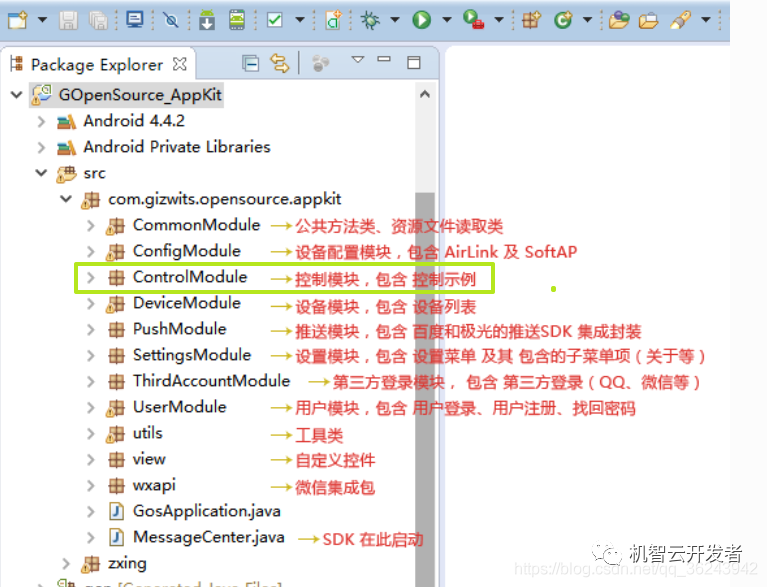
1.打開GosDeviceControlActivity這個類
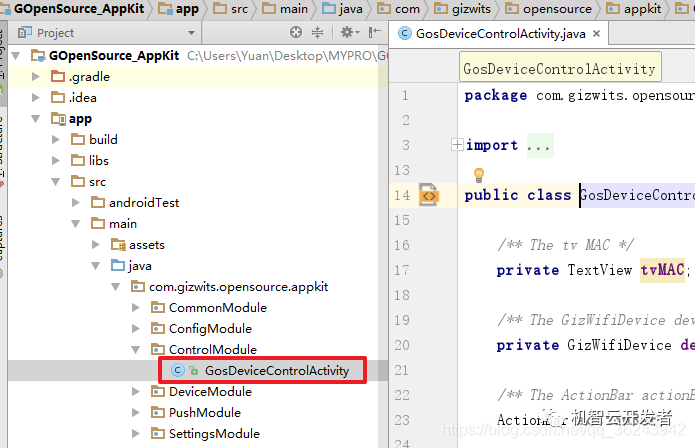
找到Oncreate()方法:
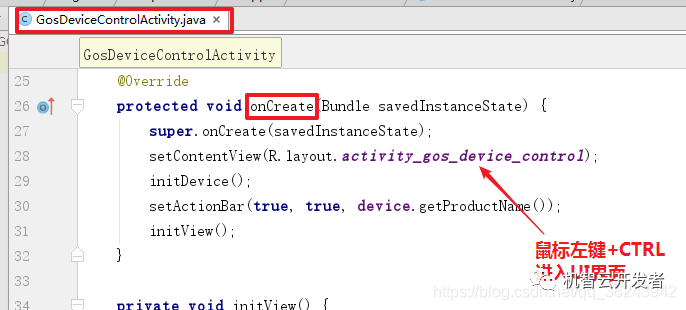
刪除不必要的東西,如下圖所示:
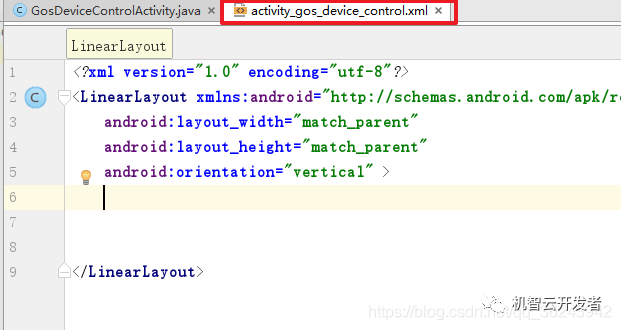
注意,因為在GosDeviceControlActivity.java中引用了我們刪除的控件,所以在GosDeviceControlActivity也必須把這個引用刪除,否則因為找不到對應的控件導致錯誤。
2.導入UI使用到的圖片
把我們在UI需要適用到的圖片導入drawable,以便引用,文件如下
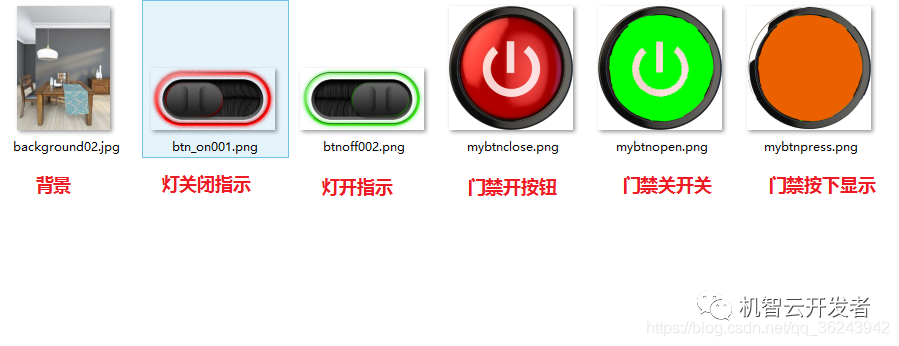
復制到如下的路徑:
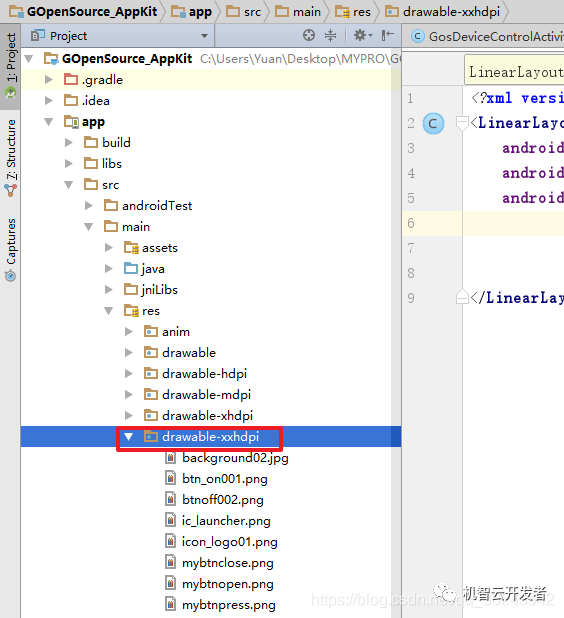
3.編寫UI界面詳解:
因為所有控件一個頁面是顯示不下的,所以此處需要使用一個 ScrollView ,使UI界面可以上下滑動
ScrollView具體使用方法:
https://blog.csdn.net/qq_36243942/article/details/82185051
android:layout_width="match_parent"android:layout_height="match_parent"android:orientation="vertical" >
android:layout_width="match_parent"android:layout_height="match_parent"android:background="@drawable/background02"android:fadingEdge="vertical"android:paddingBottom="10dp"android:paddingTop="20dp"android:scrollbars="vertical">
注意此處修改了背景為剛才我們導入的背景圖片,視圖如下:
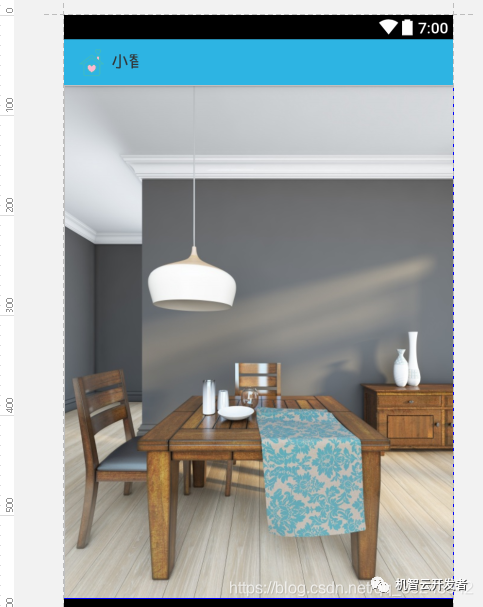
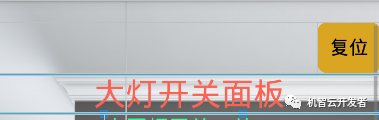
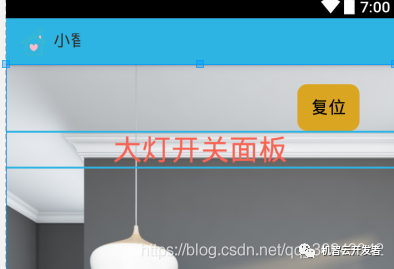
在最上邊編寫一個復位按鈕,用來復位大燈,以及門禁系統:
也就是如下的界面:
在ScrollView中新建一個根布局為線性布局(LinearLayout)
備注:
1.控件布局相關知識:
https://blog.csdn.net/qq_36243942/article/details/81736744
2.線性布局相關知識:
https://blog.csdn.net/qq_36243942/article/details/81808833
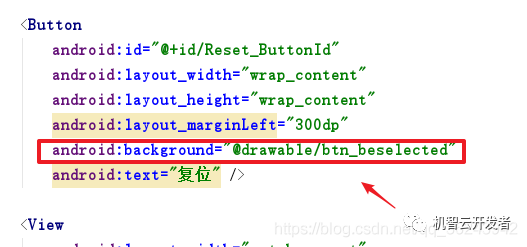
2.為了讓按鈕看起來更美觀,且有按下的效果,我們自己新建一個selector布局,然后引用這個布局文件
步驟:
關于如何自定義按鈕屬性:https://blog.csdn.net/qq_36243942/article/details/82113312
UI界面代碼如下:
android:layout_width="match_parent"android:layout_height="match_parent"android:orientation="vertical" >
android:layout_width="match_parent"android:layout_height="match_parent"android:background="@drawable/background02"android:fadingEdge="vertical"android:paddingBottom="10dp"android:paddingTop="20dp"android:scrollbars="vertical">android:layout_width="match_parent"android:layout_height="match_parent"android:orientation="vertical"android:scrollbars="vertical"android:weightSum="1">android:id="@+id/Reset_ButtonId"android:layout_width="wrap_content"android:layout_height="wrap_content"android:layout_marginLeft="300dp"android:background="@drawable/btn_beselected"android:text="復位" />
android:layout_width="match_parent"android:layout_height="2dp"android:background="@color/alert_blue">
android:layout_width="match_parent"android:layout_height="35dp"android:gravity="center"android:text="大燈開關面板"android:textColor="#f86354"android:textSize="30dp" />android:layout_width="match_parent"android:layout_height="2dp"android:background="@color/alert_blue">
備注:在Button控件的background中引用這個drawable文件
界面如下:
完成大燈控制的UI界面
如下:
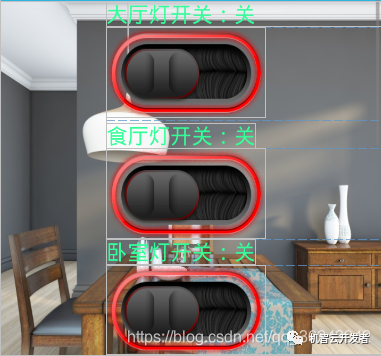
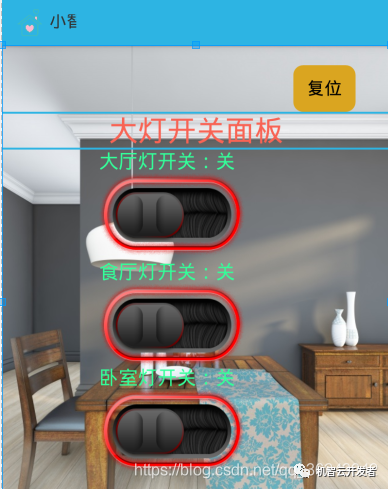
這個按鈕使用的控件是CheckBox,當這個CheckBox未被選中時,顯示紅色的圖片,并顯示開關狀態為關,如果CheckBox被選中那么現實綠色的圖片,并顯示狀態為開。
備注:
1.CheckBox的使用方法:https://blog.csdn.net/qq_36243942/article/details/81744237
2.創建一個selector布局,設置選中顯示顯示綠色,未選中選擇紅色
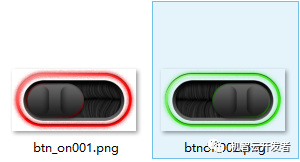
步驟:
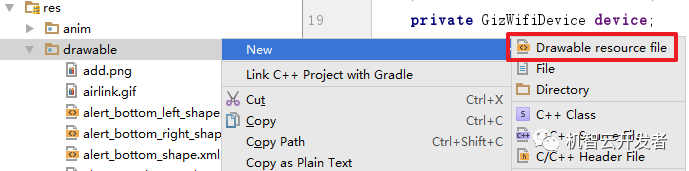
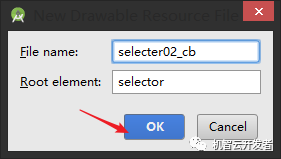
代碼如下:
android:state_checked="true">android:state_checked="false">詳細代碼代碼如下:
android:layout_width="match_parent"android:layout_height="match_parent"android:orientation="vertical" >
android:layout_width="match_parent"android:layout_height="match_parent"android:background="@drawable/background02"android:fadingEdge="vertical"android:paddingBottom="10dp"android:paddingTop="20dp"android:scrollbars="vertical">
android:layout_width="match_parent"android:layout_height="match_parent"android:orientation="vertical"android:scrollbars="vertical"android:weightSum="1">
android:id="@+id/Reset_ButtonId"android:layout_width="wrap_content"android:layout_height="wrap_content"android:layout_marginLeft="300dp"android:background="@drawable/btn_beselected"android:text="復位" />
android:layout_width="match_parent"android:layout_height="2dp"android:background="@color/alert_blue">
android:layout_width="match_parent"android:layout_height="35dp"android:gravity="center"android:text="大燈開關面板"android:textColor="#f86354"android:textSize="30dp" />
android:layout_width="match_parent"android:layout_height="2dp"android:background="@color/alert_blue">
android:layout_width="match_parent"android:layout_height="match_parent"
android:layout_marginLeft="100dp"android:layout_weight="0.10"android:orientation="vertical">
android:id="@+id/TV_RedID"android:layout_width="match_parent"android:layout_height="match_parent"android:text="大廳燈開關:關"android:textAllCaps="false"android:textColor="#33ff99"android:textSize="20dp" />
android:id="@+id/checkbox01_ID"android:layout_width="150dp"android:layout_height="85dp"android:background="@drawable/selecter02_cb"android:button="@null" />
android:id="@+id/TV_GreenID"android:layout_width="wrap_content"android:layout_height="wrap_content"
android:layout_marginTop="5dp"android:text="食廳燈開關:關"android:textAllCaps="false"android:textColor="#33ff99"android:textSize="20dp" />
android:id="@+id/checkbox02_ID"android:layout_width="150dp"android:layout_height="85dp"android:background="@drawable/selecter02_cb"android:button="@null" />
android:id="@+id/TV_BlueID"android:layout_width="wrap_content"android:layout_height="wrap_content"
android:text="臥室燈開關:關"android:textAllCaps="false"android:textColor="#33ff99"android:textSize="20dp" />
android:id="@+id/checkbox03_ID"android:layout_width="150dp"android:layout_height="85dp"android:background="@drawable/selecter02_cb"android:button="@null" />
備注:每個CheckBox的background屬性都需要引用selector02_cb這個文件
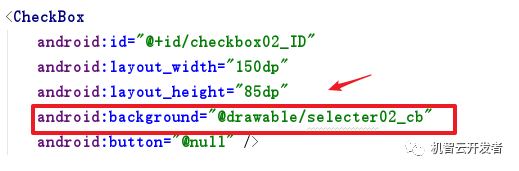
整體界面如下:
完成門禁開關面板的UI界面設計
如下:
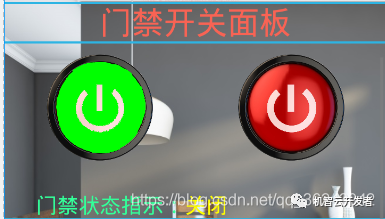
這兩個按鈕實用的控件上ImageButton
備注:
1.ImageButton的使用:https://blog.csdn.net/qq_36243942/article/details/81783895
在上面的基礎增加一個線性布局,注意此時線性布局的方向應該是水平的。
整體代碼如下:
android:layout_width="match_parent"android:layout_height="match_parent"android:orientation="vertical" >
android:layout_width="match_parent"android:layout_height="match_parent"android:background="@drawable/background02"android:fadingEdge="vertical"android:paddingBottom="10dp"android:paddingTop="20dp"android:scrollbars="vertical">
android:layout_width="match_parent"android:layout_height="match_parent"android:orientation="vertical"android:scrollbars="vertical"android:weightSum="1">
android:id="@+id/Reset_ButtonId"android:layout_width="wrap_content"android:layout_height="wrap_content"android:layout_marginLeft="300dp"android:background="@drawable/btn_beselected"android:text="復位" />
android:layout_width="match_parent"android:layout_height="2dp"android:background="@color/alert_blue">
android:layout_width="match_parent"android:layout_height="35dp"android:gravity="center"android:text="大燈開關面板"android:textColor="#f86354"android:textSize="30dp" />
android:layout_width="match_parent"android:layout_height="2dp"android:background="@color/alert_blue">
android:layout_width="match_parent"android:layout_height="match_parent"
android:layout_marginLeft="100dp"android:layout_weight="0.10"android:orientation="vertical">
android:id="@+id/TV_RedID"android:layout_width="match_parent"android:layout_height="match_parent"android:text="大廳燈開關:關"android:textAllCaps="false"android:textColor="#33ff99"android:textSize="20dp" />
android:id="@+id/checkbox01_ID"android:layout_width="150dp"android:layout_height="85dp"android:background="@drawable/selecter02_cb"android:button="@null" />
android:id="@+id/TV_GreenID"android:layout_width="wrap_content"android:layout_height="wrap_content"
android:layout_marginTop="5dp"android:text="食廳燈開關:關"android:textAllCaps="false"android:textColor="#33ff99"android:textSize="20dp" />
android:id="@+id/checkbox02_ID"android:layout_width="150dp"android:layout_height="85dp"android:background="@drawable/selecter02_cb"android:button="@null" />
android:id="@+id/TV_BlueID"android:layout_width="wrap_content"android:layout_height="wrap_content"
android:text="臥室燈開關:關"android:textAllCaps="false"android:textColor="#33ff99"android:textSize="20dp" />
android:id="@+id/checkbox03_ID"android:layout_width="150dp"android:layout_height="85dp"android:background="@drawable/selecter02_cb"android:button="@null" />
android:layout_width="match_parent"android:layout_height="2dp"android:background="@color/alert_blue">
android:id="@+id/textView7"android:layout_width="match_parent"android:layout_height="35dp"android:gravity="center"android:text="門禁開關面板"android:textColor="#f86354"android:textSize="30dp" />
android:layout_width="match_parent"android:layout_height="2dp"android:background="@color/alert_blue">
android:layout_width="match_parent"android:layout_height="wrap_content"android:layout_marginTop="10dp"android:layout_weight="0.24"android:orientation="horizontal">
android:id="@+id/IV_ButtonID"android:layout_width="100dp"android:layout_height="100dp"android:layout_marginLeft="40dp"android:background="@drawable/mybtnopen" />
android:id="@+id/IV_closeButtonID"android:layout_width="100dp"android:layout_height="100dp"android:layout_marginLeft="80dp"android:background="@drawable/mybtnclose" />
整體界面如下:
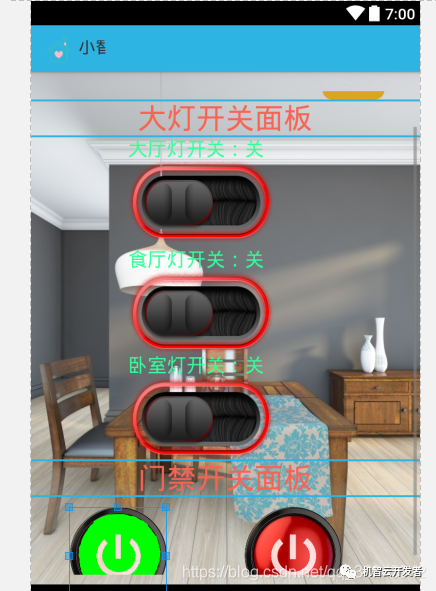
接下來就是溫濕度檢測,有毒氣體,以及紅外檢測等一些TextView的設置,就不一一貼出來了,整體代碼如下:
android:orientation="vertical"android:layout_width="match_parent"android:layout_height="match_parent">
android:layout_width="match_parent"android:layout_height="match_parent"android:background="@drawable/background02"android:fadingEdge="vertical"android:paddingBottom="10dp"android:paddingTop="20dp"android:scrollbars="vertical">
android:layout_width="match_parent"android:layout_height="match_parent"android:orientation="vertical"android:scrollbars="vertical"android:weightSum="1">
android:id="@+id/Reset_ButtonId"android:layout_width="wrap_content"android:layout_height="wrap_content"android:layout_marginLeft="300dp"android:background="@drawable/btn_beselected"android:text="復位" />
android:layout_width="match_parent"android:layout_height="2dp"android:background="@color/alert_blue">
android:layout_width="match_parent"android:layout_height="35dp"android:gravity="center"android:text="大燈開關面板"android:textColor="#f86354"android:textSize="30dp" />
android:layout_width="match_parent"android:layout_height="2dp"android:background="@color/alert_blue">
android:layout_width="match_parent"android:layout_height="match_parent"
android:layout_marginLeft="100dp"android:layout_weight="0.10"android:orientation="vertical">
android:id="@+id/TV_RedID"android:layout_width="match_parent"android:layout_height="match_parent"android:text="大廳燈開關:關"android:textAllCaps="false"android:textColor="#33ff99"android:textSize="20dp" />
android:id="@+id/checkbox01_ID"android:layout_width="150dp"android:layout_height="85dp"android:background="@drawable/selecter02_cb"android:button="@null" />
android:id="@+id/TV_GreenID"android:layout_width="wrap_content"android:layout_height="wrap_content"
android:layout_marginTop="5dp"android:text="食廳燈開關:關"android:textAllCaps="false"android:textColor="#33ff99"android:textSize="20dp" />
android:id="@+id/checkbox02_ID"android:layout_width="150dp"android:layout_height="85dp"android:background="@drawable/selecter02_cb"android:button="@null" />
android:id="@+id/TV_BlueID"android:layout_width="wrap_content"android:layout_height="wrap_content"
android:text="臥室燈開關:關"android:textAllCaps="false"android:textColor="#33ff99"android:textSize="20dp" />
android:id="@+id/checkbox03_ID"android:layout_width="150dp"android:layout_height="85dp"android:background="@drawable/selecter02_cb"android:button="@null" />
android:layout_width="match_parent"android:layout_height="2dp"android:background="@color/alert_blue">
android:id="@+id/textView7"android:layout_width="match_parent"android:layout_height="35dp"android:gravity="center"android:text="門禁開關面板"android:textColor="#f86354"android:textSize="30dp" />
android:layout_width="match_parent"android:layout_height="2dp"android:background="@color/alert_blue">
android:layout_width="match_parent"android:layout_height="wrap_content"android:layout_marginTop="10dp"android:layout_weight="0.24"android:orientation="horizontal">
android:id="@+id/IV_ButtonID"android:layout_width="100dp"android:layout_height="100dp"android:layout_marginLeft="40dp"android:background="@drawable/mybtnopen" />
android:id="@+id/IV_closeButtonID"android:layout_width="100dp"android:layout_height="100dp"android:layout_marginLeft="80dp"android:background="@drawable/mybtnclose" />
android:layout_width="wrap_content"android:layout_height="wrap_content"android:layout_marginLeft="30dp"android:layout_marginTop="30dp"android:orientation="horizontal">
android:layout_width="wrap_content"android:layout_height="wrap_content"android:text="門禁狀態指示:"android:textColor="#33ff99"android:textSize="20dp" />
android:id="@+id/TV_indicateID"android:layout_width="wrap_content"android:layout_height="wrap_content"android:text="關閉"android:textColor="#ffff00"android:textSize="20dp" />
android:layout_width="match_parent"android:layout_height="2dp"android:background="@color/alert_blue">
android:id="@+id/textView8"android:layout_width="match_parent"android:layout_height="35dp"android:gravity="center"android:text="溫濕度檢測"android:textColor="#f86354"android:textSize="30dp" />
android:layout_width="match_parent"android:layout_height="2dp"android:background="@color/alert_blue">
android:layout_width="match_parent"android:layout_height="match_parent"android:layout_marginBottom="1dp"android:layout_marginTop="20dp"android:orientation="horizontal"android:padding="50dp">
android:id="@+id/textView4"android:layout_width="wrap_content"android:layout_height="match_parent"android:text="大氣溫度"android:textColor="#33ff99"android:textSize="20dp" />
android:id="@+id/tv_data_temp"android:layout_width="110dp"android:layout_height="match_parent"android:layout_marginLeft="30dp"android:textColor="@color/green"android:textSize="30dp" />android:layout_width="match_parent"android:layout_height="wrap_content"android:layout_marginBottom="1dp"android:layout_weight="0.03"android:orientation="horizontal"android:padding="50dp">
android:id="@+id/textView"android:layout_width="wrap_content"android:layout_height="match_parent"android:layout_centerVertical="true"android:text="相對濕度"android:textColor="#33ff99"android:textSize="20dp" />
android:id="@+id/tv_data_hum"android:layout_width="110dp"android:layout_height="match_parent"android:layout_alignParentRight="true"android:layout_centerVertical="true"android:layout_marginLeft="30dp"android:gravity="end"android:textColor="@color/green"android:textSize="30dp" />
android:layout_width="match_parent"android:layout_height="2dp"android:background="@color/alert_blue">
android:id="@+id/textView6"android:layout_width="match_parent"android:layout_height="35dp"
android:gravity="center"android:text="有毒氣體檢測"android:textColor="#f86354"android:textSize="30dp" />
android:layout_width="match_parent"android:layout_height="2dp"android:background="@color/alert_blue">
android:layout_width="match_parent"android:layout_height="wrap_content"android:layout_marginBottom="1dp"android:layout_weight="0.03"
android:padding="50dp">
android:layout_width="wrap_content"android:layout_height="match_parent"android:layout_centerVertical="true"android:text="氣體監測"android:textColor="#33ff99"android:textSize="20dp" />
android:id="@+id/tv_gsa_detection"android:layout_width="110dp"android:layout_height="match_parent"android:layout_alignParentRight="true"android:layout_centerVertical="true"android:gravity="end"android:textColor="#FF0000"android:textSize="30dp" />
android:layout_width="match_parent"android:layout_height="2dp"android:background="@color/alert_blue">
android:layout_width="match_parent"android:layout_height="35dp"android:gravity="center"android:text="紅外感應檢測"android:textColor="#f86354"
android:textSize="30dp" />
android:layout_width="match_parent"android:layout_height="2dp"android:background="@color/alert_blue">
android:layout_width="match_parent"android:layout_height="wrap_content"android:layout_marginBottom="1dp"android:layout_weight="0.03"android:padding="50dp">
android:id="@+id/textView5"android:layout_width="wrap_content"android:layout_height="match_parent"android:layout_centerVertical="true"android:text="人體檢測"android:textColor="#33ff99"android:textSize="20dp" />
android:id="@+id/tv_body_move"android:layout_width="wrap_content"android:layout_height="match_parent"android:layout_alignParentRight="true"android:layout_centerVertical="true"android:gravity="end"android:textColor="#FF0000"android:textSize="30dp" />
android:layout_width="wrap_content"android:layout_height="match_parent"android:orientation="horizontal">
android:id="@+id/Reset_DetnumId"android:layout_width="wrap_content"android:layout_height="wrap_content"android:layout_marginLeft="30dp"android:background="@drawable/btn_beselected"android:text="復位檢測" />
android:layout_width="wrap_content"android:layout_height="wrap_content"android:text=" 檢測次數統計:"android:textColor="#ca8687"android:textSize="20dp" />
android:id="@+id/TV_Det_timesID"android:layout_width="wrap_content"android:layout_height="wrap_content"android:text=" 0次"android:textColor="#1d953f"android:textSize="20dp" />
android:layout_width="match_parent"android:layout_height="2dp"android:background="@color/alert_blue">
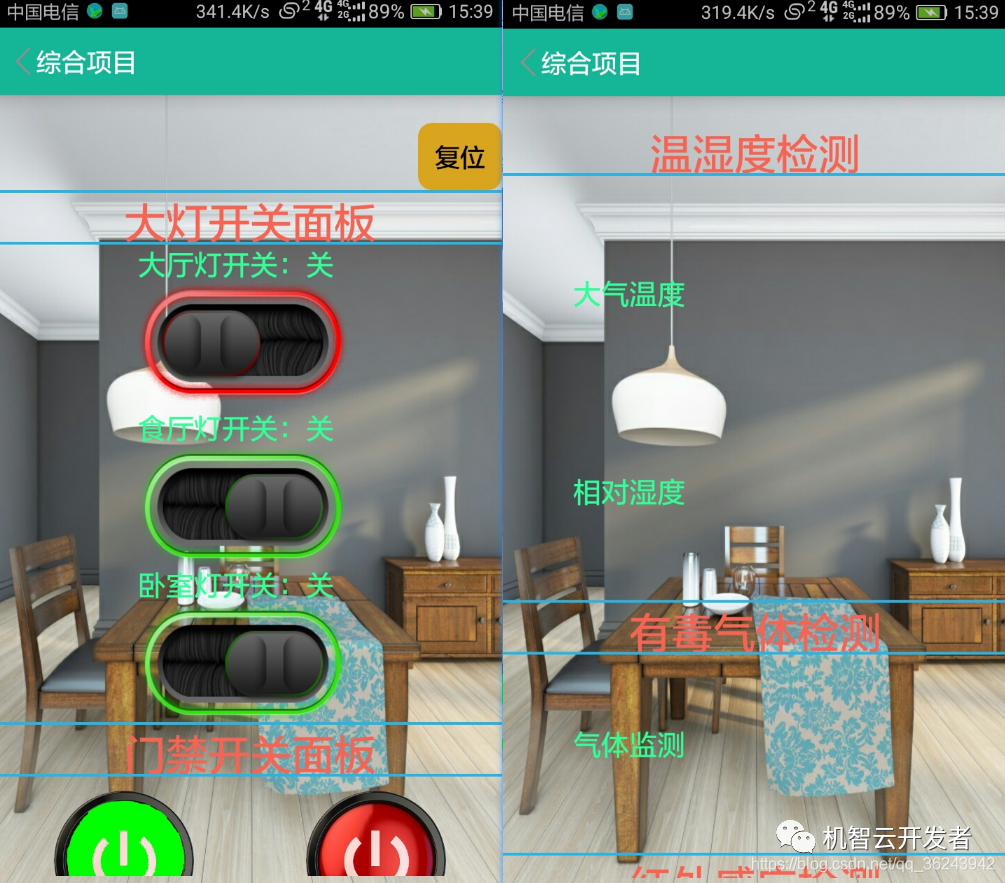
整體UI界面效果如下:
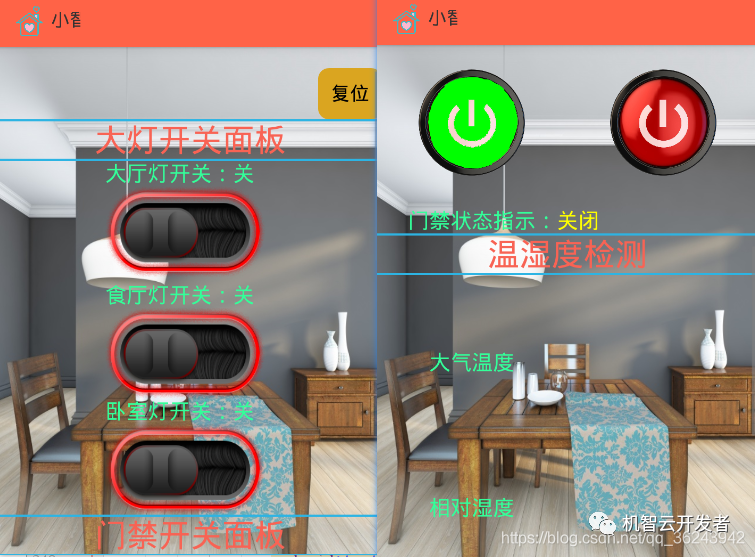
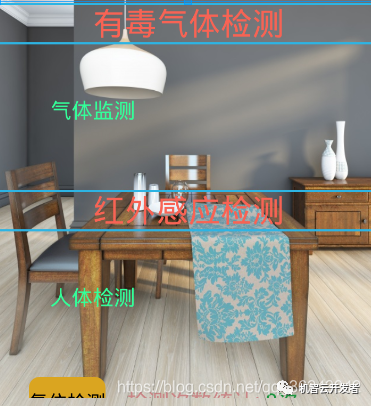
4.下載到真題驗證
修改完了UI界面之后,就可以下載到真題上體驗一下:
步驟:
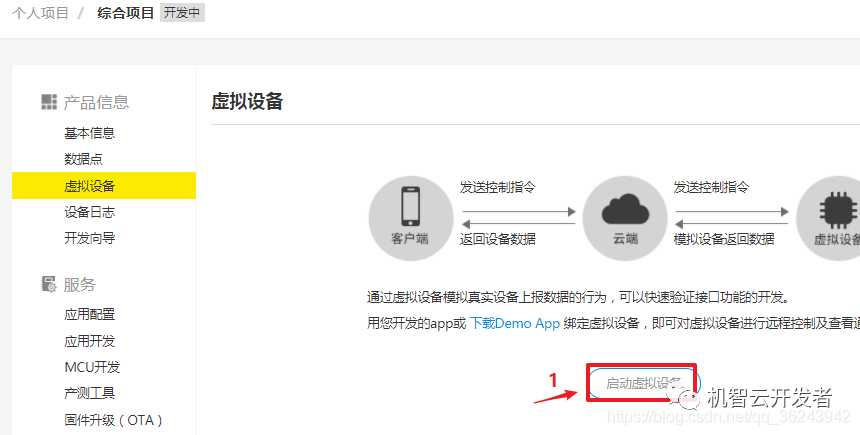
4.1.進入機智云官網,打開你的項目,打開虛擬設備
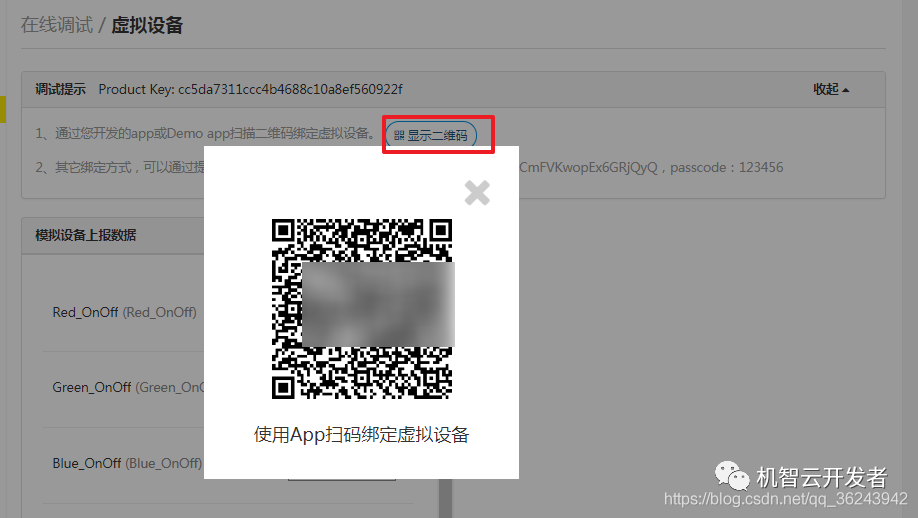
4.2.點擊二維碼
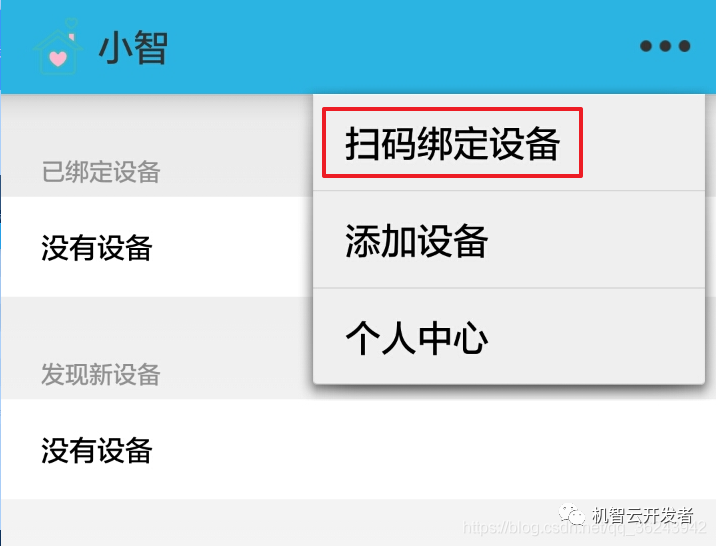
4.3.使用APP掃描
4.4.掃描后進入
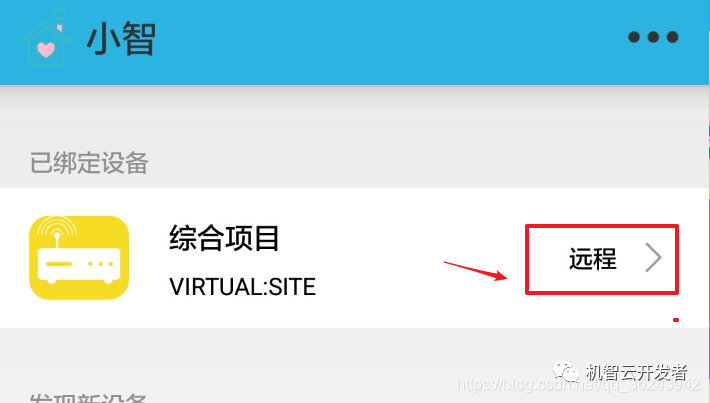
4.5.接下來就可以看到我們寫的UI界面啦
5.編寫密碼輸入的UI界面
到了這一步好像UI設計已經全部完成了,但是上面還有一個門禁的Activity哦,就是當你按門禁開關面板的紅色綠色按鈕時,
進入密碼輸入界面,輸入正確的密碼則打開門禁,否則不打開。
在這里使用Intent進行Activity的跳轉
備注:
5.1.何為Intent//blog.csdn.net/qq_36243942/article/details/81938476
步驟:
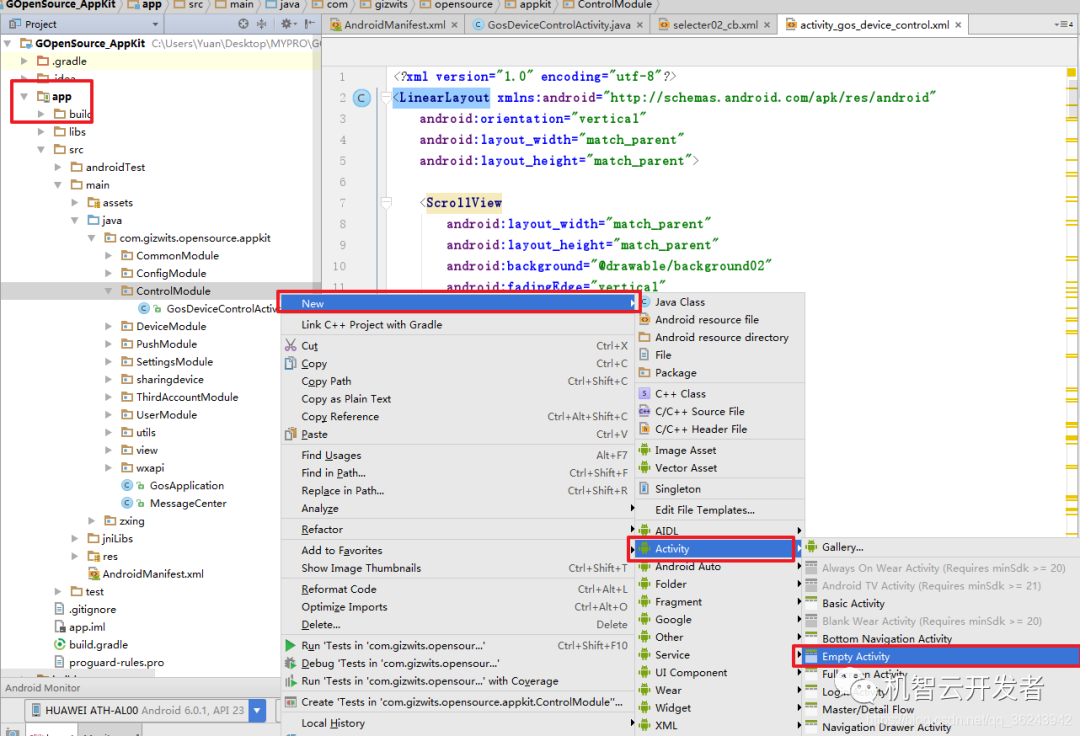
5.1.1.在ControlModule新建一個空的Activity
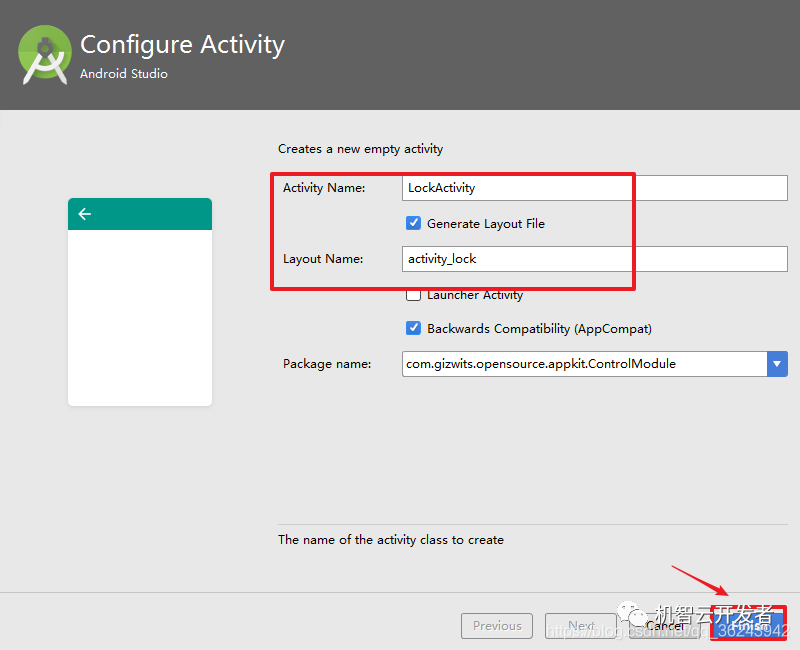
5.1.2.填寫Activity的名稱和所對應layout的名稱,Androidstuio會自動
5.1.3.編寫ActivityLock.xml文件
代碼如下:
android:layout_width="match_parent"android:layout_height="match_parent"android:background="#D1EEEE"android:orientation="vertical">android:layout_width="368dp"android:layout_height="wrap_content"android:orientation="vertical"android:gravity="center">android:layout_width="match_parent"android:layout_height="wrap_content"android:text="請輸入門禁密碼"android:textSize="25dp"android:gravity="center"android:layout_marginTop="30dp"/>android:id="@+id/ED_Passward_ID"android:layout_width="match_parent"android:layout_height="wrap_content"android:hint="請輸入密碼" />android:layout_width="wrap_content"android:layout_height="wrap_content"android:orientation="horizontal">
android:id="@+id/BT_sure_ID"android:layout_width="wrap_content"android:layout_height="wrap_content"android:text="確定"android:layout_marginLeft="200dp"/>android:id="@+id/BT_cancle_ID"android:layout_width="wrap_content"android:layout_height="wrap_content"android:text="取消"/>
android:id="@+id/TV_reciveID"android:layout_width="match_parent"android:layout_height="match_parent"android:text=""android:textSize="25dp"android:gravity="center"android:layout_marginTop="30dp"/>
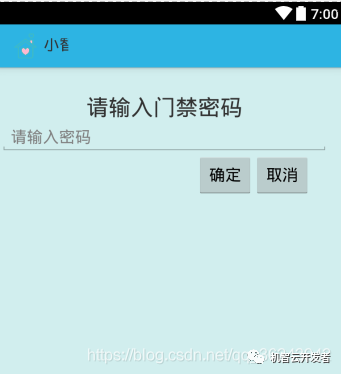
界面如下:
到這里所有的UI界面已經設計完成了,接下來就是需要寫控制代碼了。
(控制代碼實現參考本系列文章第一篇)
————————————————
版權聲明:本文為CSDN博主「冷暖自知_源」的原創文章,遵循CC 4.0 BY-SA版權協議,轉載請附上原文出處鏈接及本聲明。
原文鏈接:https://blog.csdn.net/qq_36243942/article/details/88577979
-
智能家居
+關注
關注
1943文章
9995瀏覽量
197438
發布評論請先 登錄
多控制模式的智能家居系統設計

本地智能家居系統ESPHome,實現遠程訪問調試
基于芯源CW32 MCU智能家居照明控制系統設計與實現
集成MT9103線性霍爾傳感器提升智能家居控制精度與系統智能化水平
藍牙語音遙控器:智能家居的智慧控制核心
手機APP遠程控制,智能家居監測、智能控制系統(STM32L4、服務器、安卓源碼)實例項目打包下載
手機APP遠程控制,智能家居監測、智能控制系統(STM32L4、服務器、安卓源碼)
Matter 智能家居的通用語言
2025 TUYA全球開發者大會成功閉幕,涂鴉智能以下一代AI硬件重構人機交互邊界?

探秘明遠智睿SSD2351開發板在HMI領域的獨特魅力
智能家居Mesh組網方案:實現智能化生活的無縫連接NRF52832
從智能家居到智慧建筑:NAYOTA LBMS 如何賦能 樹莓派5 實現設備互聯?




 工商網監
工商網監
評論